
Screenshots.
And what comes next.
Capture, annotate, and pin. Turn images into text, tables, or formulas. SnapSharp brings everyday image tasks together, with AI processing that can stay on your device.
Windows 10 / 11 · x64 · Apache-2.0 license
Small tasks. A smoother workflow.
From capturing an idea to preparing a document. Keep useful tools close, and keep your work moving.
Capture & annotate
Capture an area, a window, or your screen. Explain the details with arrows, numbers, text, highlights, and pixelation.
Local OCR & translation
Extract Chinese and English text, then translate it. Use local OCR engines and a local Qwen translation model.
Tables & formulas
Turn table images into CSV / XLSX and formula images into LaTeX. Review the results before taking them into your work.
Desktop pins
Keep images, text, and color references close with pins, zoom, opacity controls, and groups.
Cutouts & image export
Separate a subject with local models and export transparent PNG / WebP. Save other images as JPEG or paginated PDF.
Scroll & record
Stitch continuous content into a long image. Record an MP4 walkthrough or create a short GIF.
Your image is just the beginning.
Explore the interface and example results. Click an image to take a closer look.
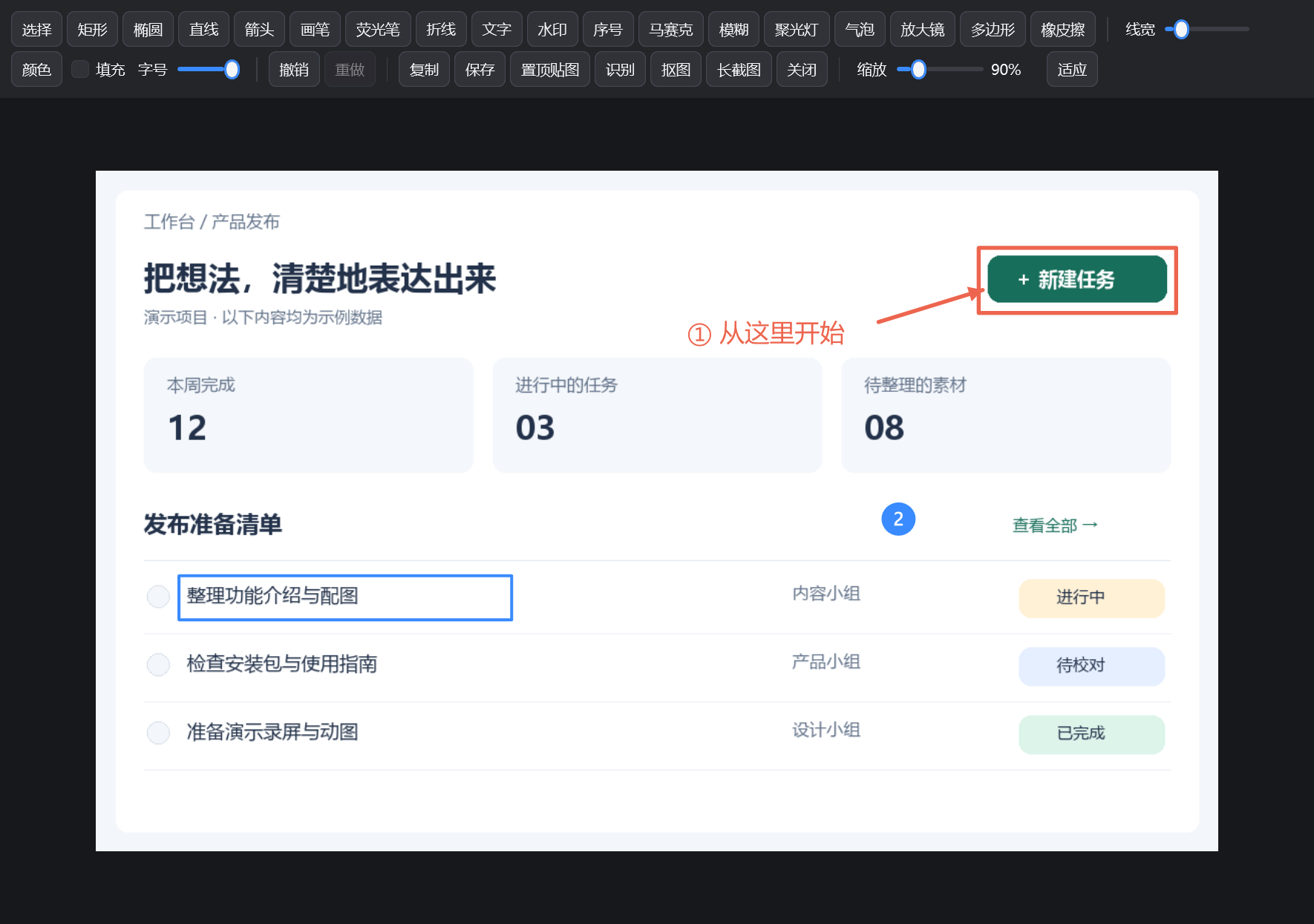
Make the important parts clear.
Annotate right after capturing. Point to a control, add an explanation, and number the steps.
- Arrows, rectangles, text, numbers, and blur
- Undo, redo, and adjust layer order
- Copy, save, or pin the result
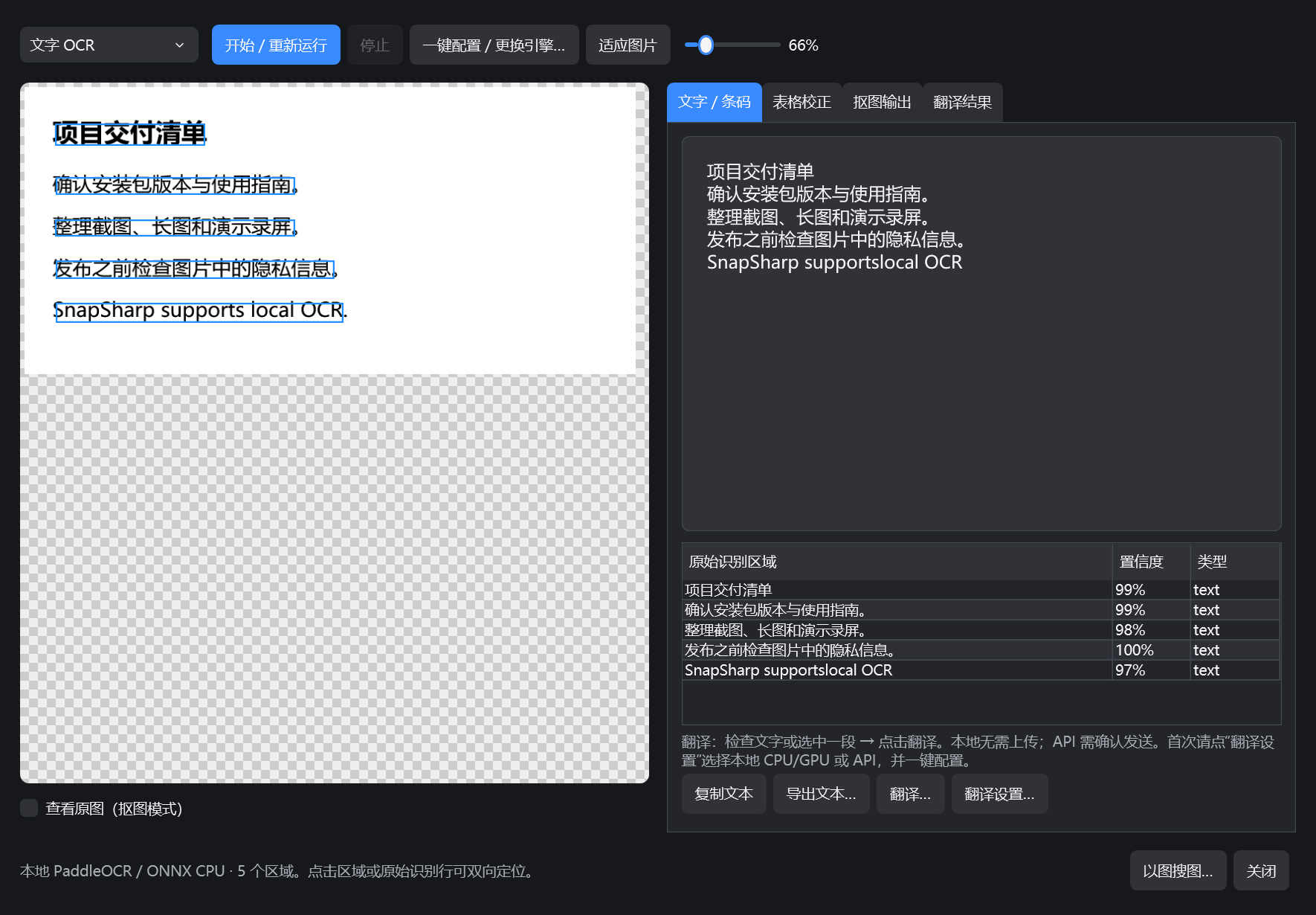
Put the text in your image to work.
Extract text with local OCR. Compare the result with the image regions, correct it, and continue working.
- Chinese and English recognition
- PaddleOCR / Windows OCR / Tesseract
- Continue with local translation
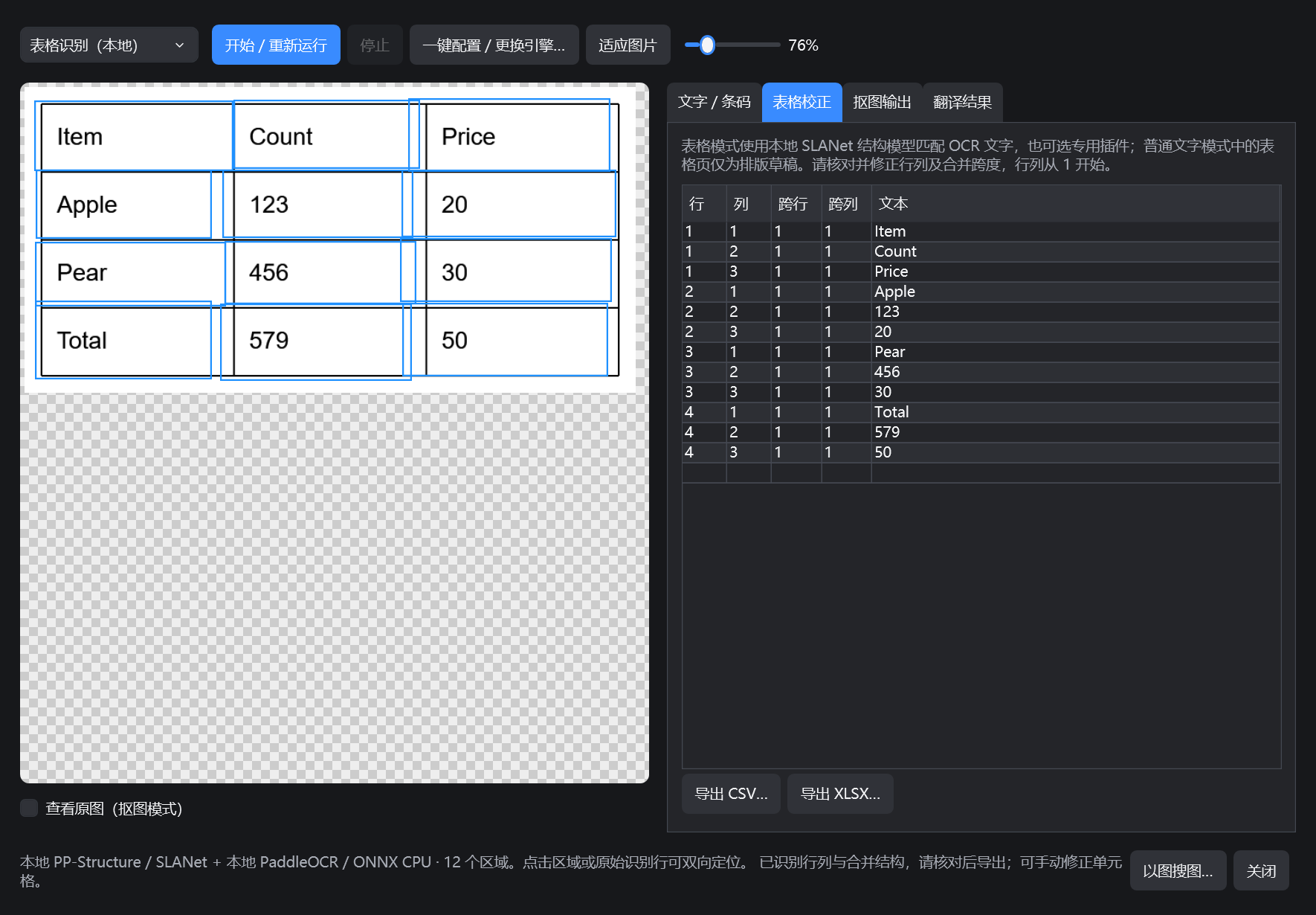
Give that table its cells back.
Recognize table structure and text, review rows and columns, and export CSV or Excel. Individual formulas can also become LaTeX.
- Local SLANet + OCR table recognition
- Review rows, columns, merges, and text
- Export recognized formulas as .tex
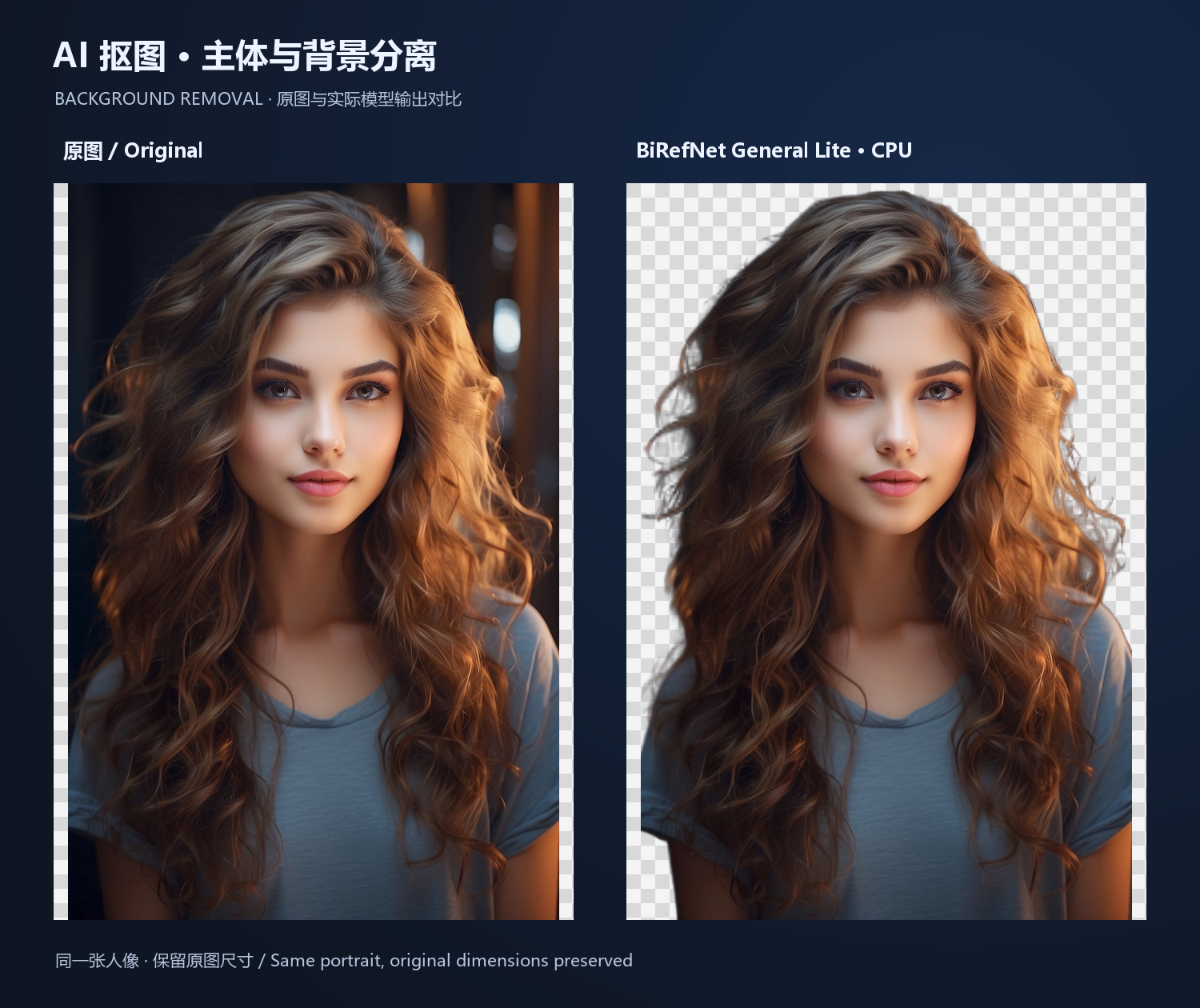
Keep the subject. Find a new use.
Remove a background with a local model, inspect the edges against the original, and save an image with transparency.
- Models include U²-Net and BiRefNet
- Choose CPU / DirectML GPU
- Transparent PNG / WebP output
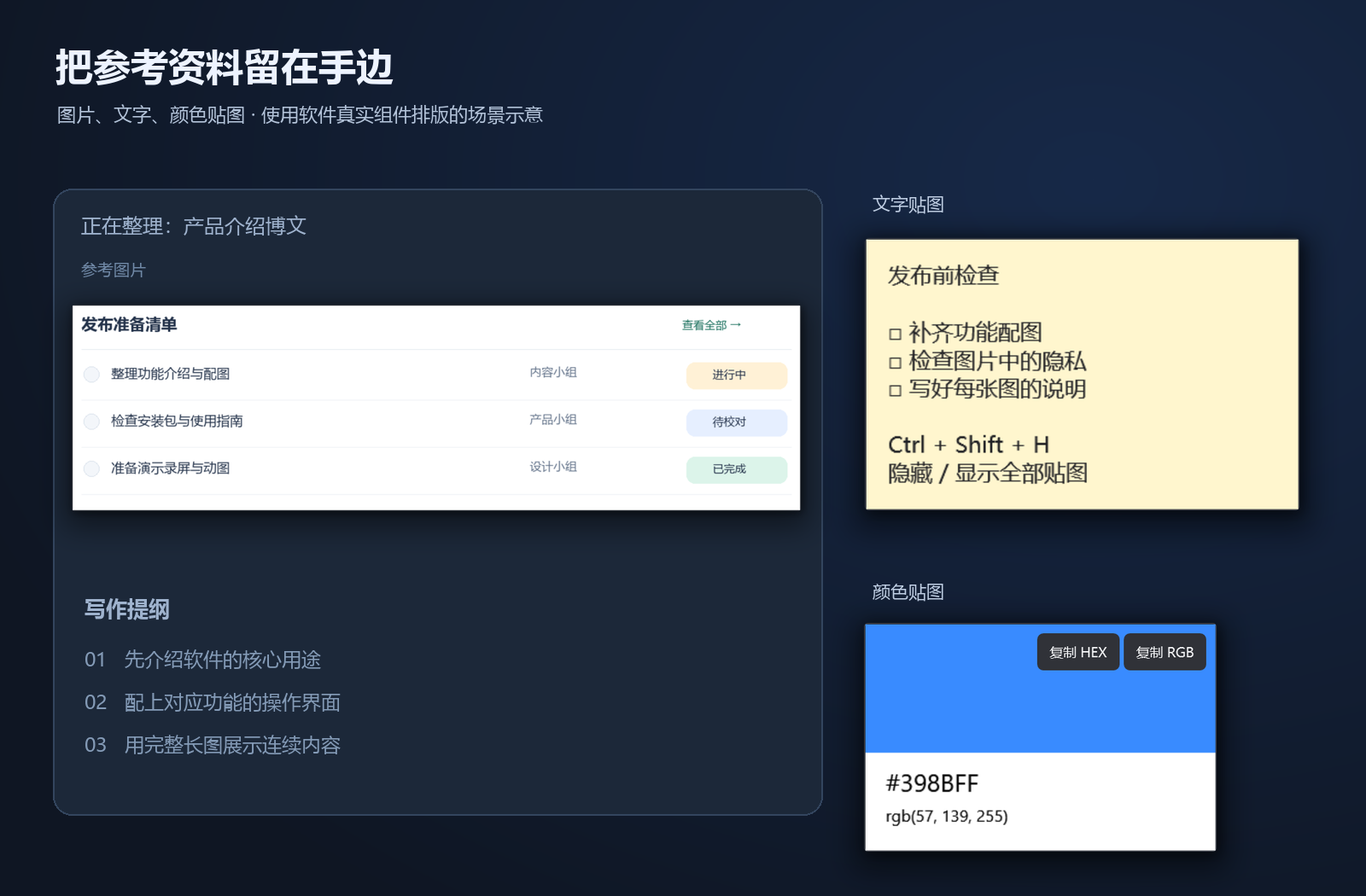
Keep your references in sight.
Pin images, notes, and color samples on top of your desktop while you keep working.
- Image, text, and color pins
- Zoom, opacity, and groups
- Show or hide all pins with a shortcut
Images include real application component renders, actual model output, and labeled composite scenes. Examples do not guarantee results for every input. Some interfaces are from 1.0.4 and may differ in the current version.
Keep the processing
close to home.
OCR, table and formula recognition, background removal, and translation all offer local processing. Download the models you need, then run these AI tasks on your device.
- Install models as needed; no separate Python installation
- Local AI processing does not upload images or text
- Optional online translation requires enabling and confirmation
Initial model downloads need internet. Hardware requirements vary by model.
Start with something you need to do.
Three everyday workflows for turning captured images into something you can work with.
How do I extract text without uploading images?
Need editable text from an image while keeping processing on your device? Start with local OCR.
Read the guide TABLE RECOGNITIONHow do I turn a table screenshot into Excel?
Turn a table image into editable cells, review them, and continue in Excel.
Read the guide FORMULA RECOGNITIONHow do I turn a formula image into LaTeX?
Select a formula and turn its image into LaTeX you can copy and typeset.
Read the guideYour first capture
starts here.
Capture and annotate right away. Download the relevant models in Settings when you want to use AI features.
Download and extract
Download the Windows x64 package from GitHub Releases. Keep the complete extracted folder and run
SnapSharp.exe.Find the tray icon and capture
The app starts in the system tray. Press Ctrl + Shift + A to select an area, then add arrows, text, or pixelation.
Copy, save, or take it further
Copy or export the capture, or pin it on your desktop. For recognition, open “Recognize clipboard image…” from the tray menu.
A few useful answers
What to know about setup, privacy, and everyday use.
Which systems does SnapSharp support?
Windows 10 version 2004 or later, and Windows 11, on x64. macOS and Linux are not currently supported.
Do I need to pay or install Python?
SnapSharp is open source under Apache-2.0, with free public release downloads. Local AI features do not need a separate Python installation. Download the relevant models first; third-party components and models have their own licenses.
Are my images uploaded to the cloud?
Local OCR, table and formula recognition, background removal, and local translation run on your device without uploading images or text. Optional online translation and image search involve network requests and require enabling or confirmation.
Can I use it offline?
Capturing and annotating work offline. Local AI features work after the relevant models and runtime components are downloaded and configured. Initial downloads and optional online services need internet access.
Why is there no window after launch?
The app starts in the system tray. Find the SnapSharp icon in the notification area, or press Ctrl+Shift+A to capture. If a shortcut does not respond, check Settings for conflicts with other apps.
Should I check the AI results?
Yes. OCR can make text, spacing, and punctuation errors. Check table structure and cell values, validate formula LaTeX, and inspect hair, transparency, and complex cutout edges. Results depend on the input, model, and device.
Make more of
your next screenshot.
An open-source Windows tool. Download, extract, and get started.