
SnapSharp offers formula recognition through local LaTeX-OCR. After downloading the models, select an image of an individual formula to generate LaTeX, copy it, or export a .tex file. Verify the symbols and structure before use.
Download the models and prepare an image
Configure the formula models in Settings → OCR and recognition → local tables and formulas, then save. Once the models are ready, recognition runs on your device.
Select one formula at a time. Keep superscripts, subscripts, fraction bars, and complete brackets, and exclude surrounding paragraphs, page numbers, and adjacent formulas.
From a screenshot to LaTeX
- Capture or copy an image of the individual formula.
- Open the recognition window and select the local LaTeX formula mode.
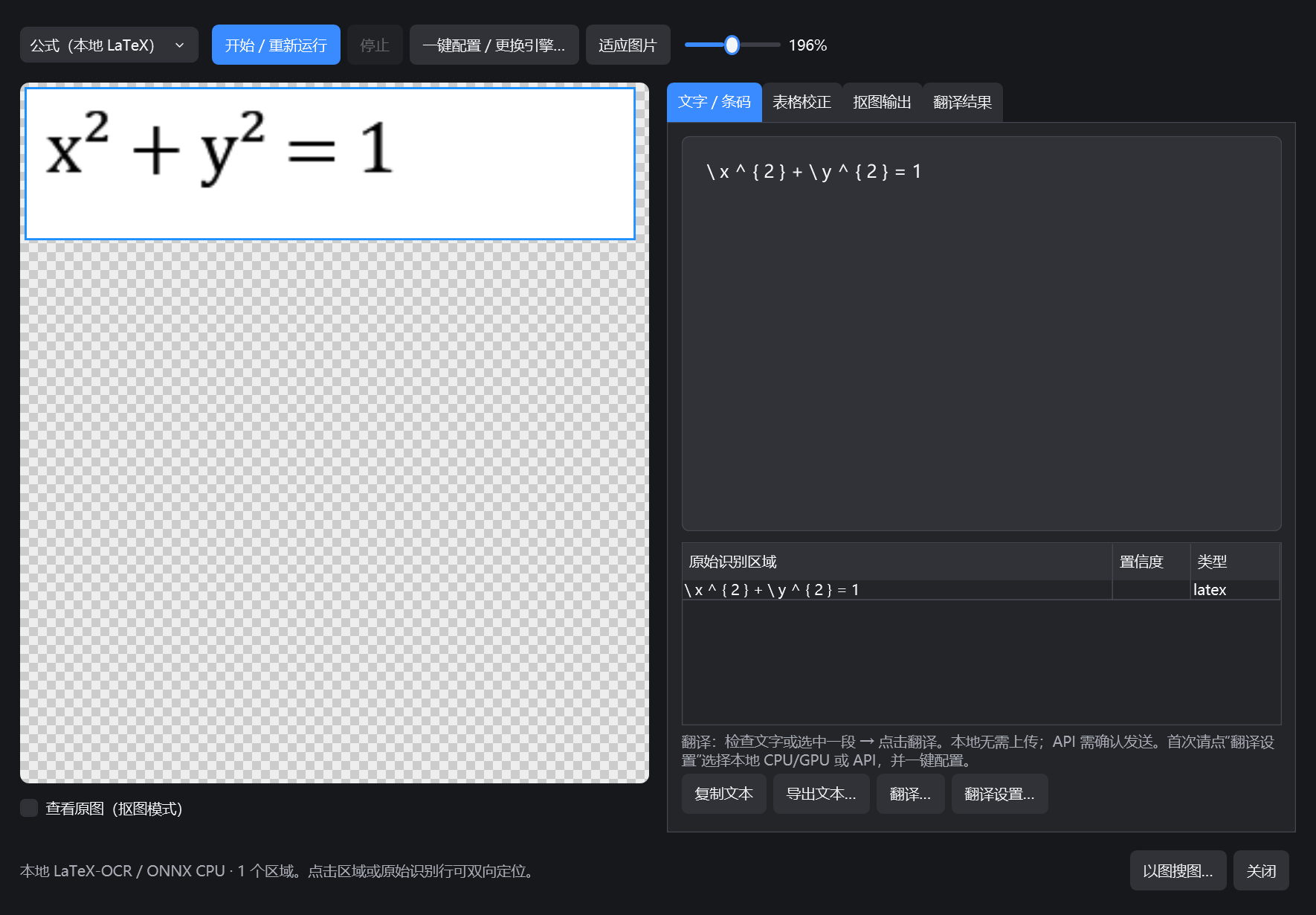
- Run recognition and compare the returned LaTeX with the original image.
- Copy the result or export .tex, render it in your LaTeX editor, and verify it.
Render the result before using it
Check superscripts, subscripts, fractions, radicals, bracket scope, and similar-looking characters. The digit 1, lowercase l, and uppercase I can be confused. Spacing commands may differ from the original typesetting.
This feature recognizes formula images. It does not recover an entire paper's layout or guarantee recognition of complex handwriting. Evaluate it with your own examples.
Example: the equation of a circle
The example is actual local CPU recognition of x² + y² = 1. The screenshot retains the model's spacing and LaTeX spacing commands, rather than replacing them with a polished reference answer.
For detailed operation, model choices, and troubleshooting, see the full user guide.