
SnapSharp combines local SLANet table structure recognition with OCR to turn a table image into rows, columns, and cell values you can review, then export as XLSX or CSV. Verify the structure and numbers before use.
Set up table and OCR models
Configure OCR in Settings → OCR and recognition, then download the table model in the local tables and formulas section and save. Initial downloads need internet; local table recognition does not upload the image.
Use a clear screenshot containing the complete table, including row and column headings. If the image contains long paragraphs, crop it to the table first.
From a table image to XLSX
- Copy the table image and open “Recognize clipboard image…” from the tray, or enter recognition from a capture selection.
- Switch to table mode and run recognition with the configured local table model.
- Review rows, columns, row and column spans, and cell text. Correct the result where needed.
- Export XLSX or CSV, open the file for further editing, and check important numbers again.
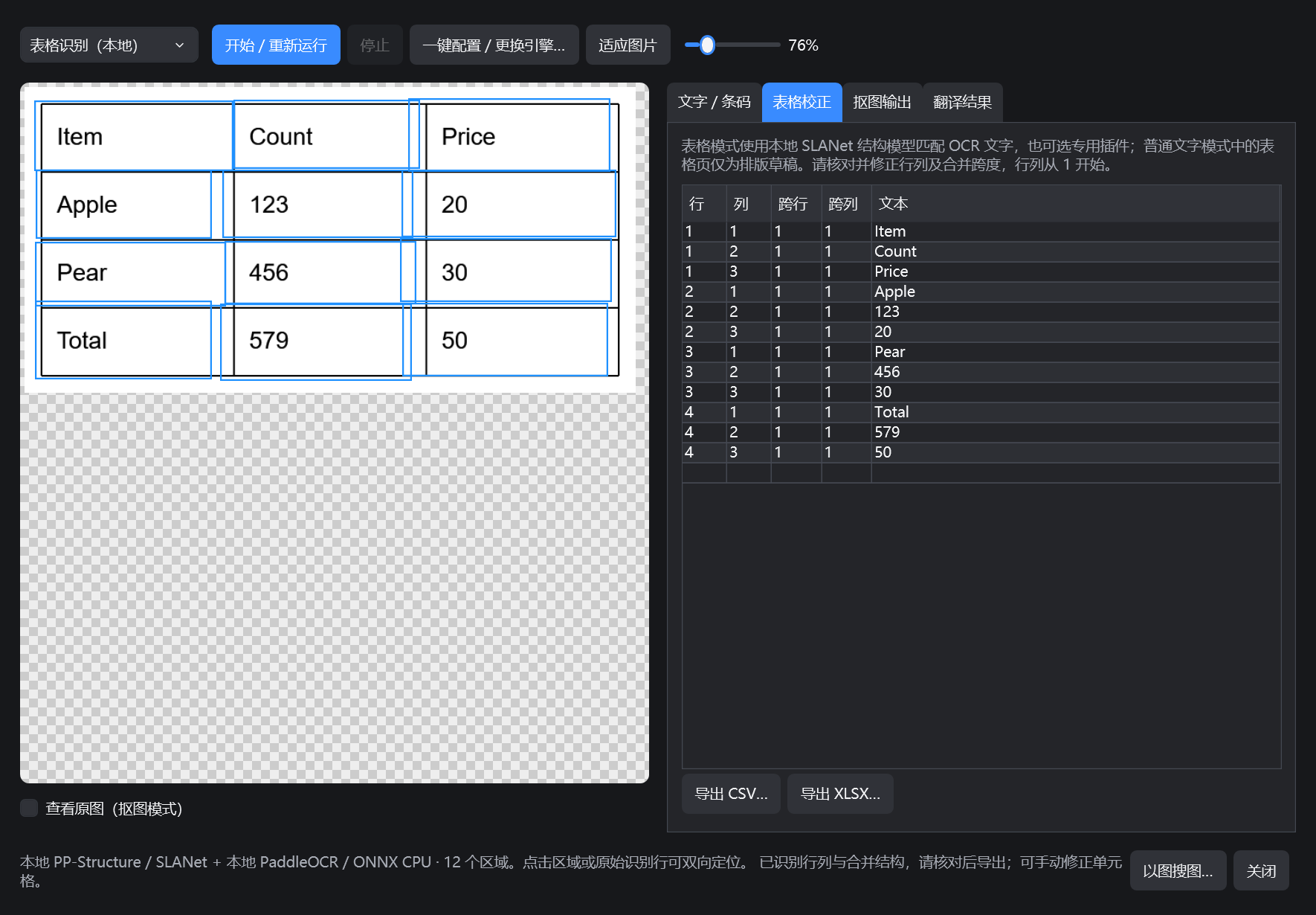
Verify both values and structure
Check row and column alignment first, then headings, merged cells, decimal points, minus signs, thousands separators, and units. Distinguish empty cells from zeros.
A screenshot only contains visible content. It cannot restore the original Excel formulas, macros, hidden sheets, or workbook logic. The export contains data and structure recognized from the image.
What the example demonstrates
The sample uses the application's pinned SLANet and PaddleOCR models on CPU to recognize a purpose-made table into 4 rows × 3 columns, or 12 cells. It demonstrates one input, rather than an accuracy claim for every table.
For detailed operation, model choices, and troubleshooting, see the full user guide.